



This FAQ guide breaks down everything you need to know about verifying your Google Business Profile, with a special focus on video verification, Google’s newer method for proving your business exists and operates as claimed.
Whether you’re a storefront or service-area business, this guide walks you through each Business Profile verification option, what to prepare, and how to troubleshoot common issues so you can get your profile live and visible on Google Search and show up on Google Maps without unnecessary delays. You can also watch this helpful Google verification video for additional clarity.
Why Did Google Introduce Video Verification for Business Profiles?
Google introduced video verification for Business Profiles to improve security, reduce spam, and speed up the verification process. Postcard verification often took days, delaying access, while verification video reviews provide a faster alternative. It also strengthens fraud prevention by making it harder for bad actors to falsify or claim Google Business locations they don’t own.
What Are the Available Methods to Verify my Google Business Profile?
-
Video Verification – Requires a real-time profile video from your mobile phone showing your business location, signage, and proof of operations. Google will need access to your mobile camera and location. This Google Business verification video cannot be completed on a desktop.
-
Phone or Text Verification – Some businesses receive a verification code via call or text to their registered phone number.
-
Email Verification – If eligible, Google will send a code to the business email associated with the listing.
-
Live Video Call Verification – A Google representative verifies your Google Business Profile in real-time through Google Meet. You must show proof of your business location and operations.
-
Bulk Verification – Bulk verification is available for businesses with 10 or more locations, allowing them to bypass standard verification once their account has been approved.
-
Postcard Verification – Google mails a postcard with a unique code to your business address, which you must enter in your profile. This option is the least available method.
What Should I Prepare Before Starting the Video Verification Process If My Address Is Not Displayed?
For Service-Area Businesses (SABs):
Since SABs do not have a public storefront, you must prove your business operates in the claimed service area during your Google Business Profile video verification.
Your verification video should include:
-
Your Service Area – Show recognizable street signs, landmarks, or advertisements in your service area. Avoid generic or unmarked locations to help Google confirm business location accurately.
-
Business existence – Display branded work vehicles, tools, uniforms, or marketing materials. A strong example is unlocking and starting a branded van, then showing the equipment inside. These items help validate your business profile during the Google Business verification video review.
-
Proof of management – Record yourself performing a service, using tools (e.g., carpet cleaning), and showing business documents like invoices, registration, or utility bills matching your Google Business Profile name.
These elements increase your chances of getting your Google Business Profile verified on the first attempt.
For more information, you can visit the Google Verification support page or watch this helpful Google verification video.
What Should I Prepare Before Starting the Video Verification Process for a Storefront Business?
For Location-Based Businesses (Brick-and-Mortar):
Businesses with a physical location that customers visit must provide the following proof during video verification:
-
Exterior of the Business – Show your storefront, including clear signage with your business name. Capture nearby landmarks or street signs so Google can confirm business location. Window decals and minor signs on office buildings are acceptable for business profile verification.
-
Failure to provide proper signage will result in a failed verification.
-
Interior of the Business – Record inside the business, highlighting tools, branded items, menus, posters, inventory, or workspaces that reflect your operations. This helps validate your listing during the Google Business Profile video review.
-
Proof of Management – Show yourself unlocking the front door, accessing the POS system, unlocking interior doors, handling inventory, using tools on the job, or displaying business licenses, tax documents, or other official paperwork. These steps strengthen your complete verification process.
Make sure your camera is steady when recording a document, and keep the camera on the document for a few seconds to ensure it is clearly visible in your video.
How Long Should My Video Be?
Your Google Business verification video should be at least 30 seconds and no longer than 5 minutes, and should clearly show all required elements, including signage, proof of operations, and the location. Before starting, make sure you’re logged into the correct Google account with owner or manager access so you can complete the verification process successfully. You can now preview your verification video before submitting it, making it easier to ensure everything is clearly captured for your Google Business Profile.
How Do I Initiate the Video Verification Process for My Google Business Profile?
To initiate the video verification process for your Google Business Profile, follow these steps:
-
Use a mobile device — Video verification must be done on a smartphone or tablet; it cannot be prerecorded or completed on a desktop. If you select “Get verified” on desktop, you will be prompted to scan a QR code and start video verification on a mobile device.
-
Enable location services and camera access — Before recording your profile video, ensure location services are turned on and that your camera and microphone have permission to record your video verification.
-
Log in to the correct Google account associated with your business profile.
-
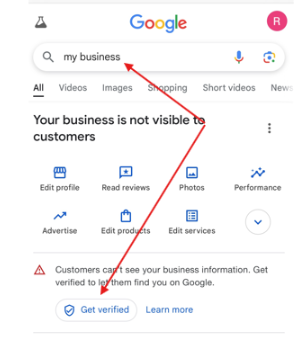
Search “my business” or go to Google Business Profile Manager and look for the “Get Verified” button.
If Google Business Profile video verification is required, Google will prompt you to begin the process.

-
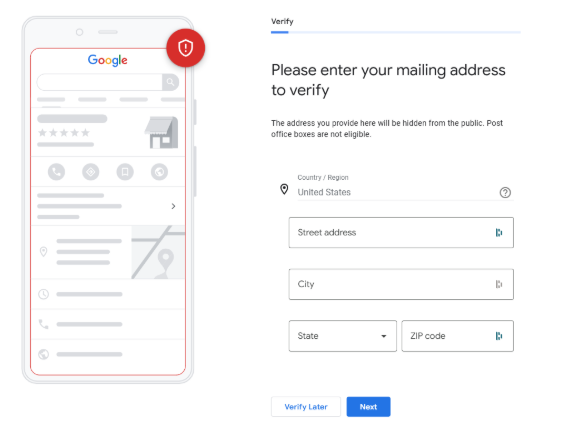
Before seeing the available verification methods, Google may prompt you to enter your address or phone number. Use the address associated with your Google Business Profile so Google can confirm business location.

-
Follow the on-screen instructions — Google will guide you through recording specific elements.
-
Brick-and-mortar businesses: Show your storefront, signage, interior, and proof of management, such as your POS system, inventory, or business documents.
-
Service-area businesses (SABs): Show a branded work vehicle, tools, or documents to prove your business operations.
-
-
Preview your video before submitting it — This helps confirm all required elements for business profile verification are clearly visible.
-
Video upload — Submit your Google verification video by following Google’s prompts. Please do not interrupt the video upload while it’s processing.
-
Review times can vary from minutes to several days. During this time, your business profile may show as “pending edits” or “processing” while Google reviews your verification video.
What Documents Are Required for Google Business Verification?
Documents are not required during the video verification process, but you can provide them to support your affiliation or ownership of the business. Acceptable documents include business registration certificates, utility bills, invoices, tax documents, or any official paperwork that matches the business name and address on your Google Business Profile. While not mandatory, including these documents can strengthen your business profile verification. When recording, allow your camera to hover over each document so Google can clearly read it, ensuring the video recording is in focus and easily legible.
How Do I Verify Multiple Business Locations?
For businesses with 10 or more locations, bulk verification may be an option, but strict requirements apply. A brand must apply for bulk verification before creating new listings, and no listings can be pending verification at the time of application.
Bulk verification does not instantly verify multiple existing listings. Your account must first be approved for bulk verification before adding new locations. If you have multiple locations that need verification and your account is not bulk-approved, you will need to use the standard Google Business verification methods for each listing.
For more information on bulk verification requirements, visit Google’s support page on Google Business Profile bulk verification.
Does Google Business Profile Phone or SMS Verification Cost Money?
No. Google does not charge for phone or SMS verification. If your business is eligible for this method, the verification code sent by call or text is completely free. Just make sure the phone number on your Google Business Profile is accurate and able to receive calls or messages.
Video Verification Best Practices
Should You Talk During Your Google Verification Video?
You can talk during your Google verification video, but it is not required and does not impact the verification video review. Google primarily relies on visual evidence to confirm business location, signage, equipment, and operational proof. If you choose to speak, keep it minimal so the focus remains on clearly capturing the required elements for your Google Business Profile video submission.
Will Showing Faces in My Video Verification Cause Me to Fail?
Google advises avoiding faces in your video verification, mainly due to privacy and sensitive data concerns. While showing faces will not automatically cause failure, it’s best to focus on business-related elements: signage, equipment, and proof of operations. Direct the camera toward assets, not people, to support a smooth, complete verification process.
Troubleshooting Video Verification Issues
Why Is My Video Verification Not Uploading?
If your video verification is not uploading, it may be due to:
-
Slow or unstable internet connection – Ensure you have a strong Wi-Fi or mobile data connection before attempting a video upload.
-
Large file size or length – Google requires videos to be under 5 minutes. Oversized videos may fail to process.
-
Google system delays – Sometimes Google’s servers experience delays. If the upload fails, wait a few hours and try again.
-
Peak-hour congestion – Try submitting your video outside peak hours, such as early morning or late evening, or avoid East Coast U.S. working hours (9 AM–5 PM ET). This can help avoid server delays or bottlenecks, especially when Google’s systems are handling high traffic.
-
If issues continue, visit the Google Business Profile Community and seek help from a Google Business Profile Expert who can escalate your case.
What Should I Do If My Verification Is Taking an Extended Period to Process?
Please allow up to 7 days for Google to review your verification video. If your business profile has been in processing for more than 7 days, contact Google Support for additional troubleshooting.
Will Google Tell Me Why I Failed Video Verification?
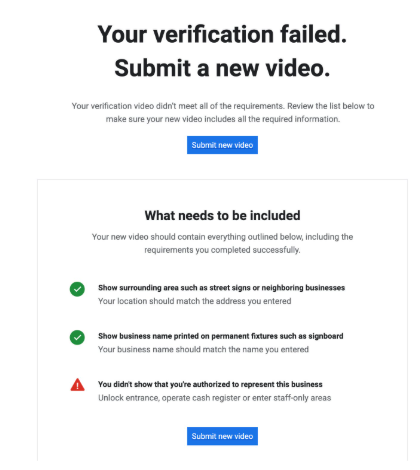
Yes. When a Google Business verification video fails, Google provides a three-part checklist that shows what was approved and which areas did not meet the requirements. Carefully review this checklist and adjust your steps before resubmitting your verification video so your Google Business Profile has the best chance of being approved.
How Can I Get Another Verification Method If I Can’t Do the Video Verification?
If video verification is the only available method, you must use it. Google does not offer alternate verification routes. You must also be physically present at the location to confirm the business location and complete the verification process. If you cannot do it yourself, ensure an authorized employee or on-site representative completes the Google Business Profile video verification on your behalf.
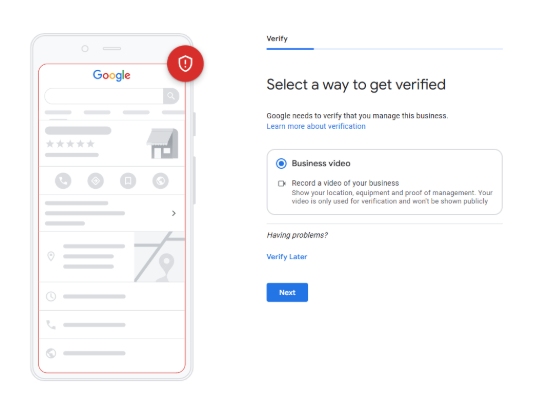
I Am Not Getting the Text or Phone Verification – How Can I Update My Verification Method?
If phone verification is the only option, but you cannot receive calls or texts, visit the Google Business Profile Community and seek help from a Google Product Expert. They can escalate your case and provide instructions on the next steps for business profile verification.
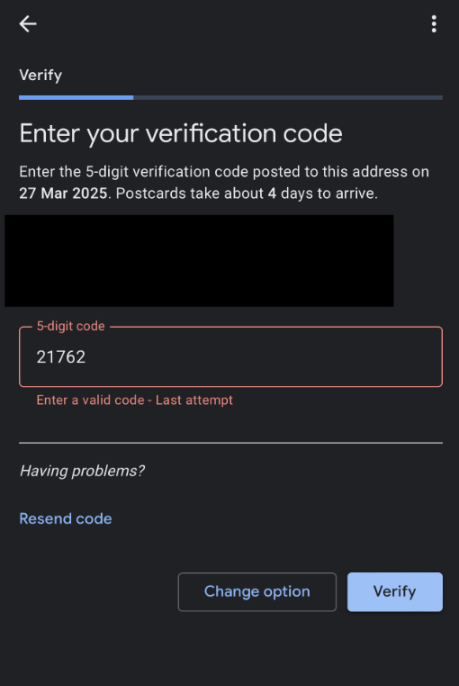
Why Is My Postcard Verification Code Not Accepted?
If you’re seeing “Enter a valid code”, it’s likely a second postcard was requested while the first was still in transit. The moment a new postcard is issued, the previous code becomes invalid.
Please wait for the most recent postcard; delivery typically takes 4–10 days.
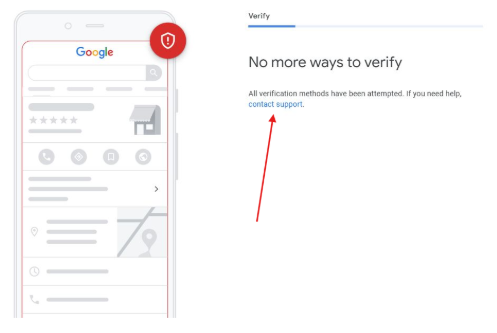
What Should I Do If There Are No Available Verification Methods (“No More Ways To Verify”)?
If your Google Business Profile shows “No More Ways To Verify”, click the contact support option shown on the screen. Google Support can re-enable a method or escalate your case if your Google business cannot access any verification methods.
For guided assistance, you can also watch the step-by-step Google verification video provided in the instructions.
What Steps Should I Take If My Business Profile Is Suspended After the Verification Process?
If your business profile becomes suspended after verification, you must appeal the suspension. First, review your listing to ensure it complies with all Google Business Profile guidelines; pay special attention to the business name, as keyword stuffing is the number-one cause of suspensions.
After confirming everything is accurate, submit an appeal through the suspension notification. For more information, refer to Google’s Suspension Support page.
Can I Change My Business Information After Verification?
Yes. Once your Google business profile verified status is active, you can update your information. However, significant changes (such as address updates or primary category changes) may trigger reverification to ensure listing accuracy.
What Happens If I Don’t Verify My Business Profile?
If your business is not verified, any edits or updates you make will not be published, and your listing may not show up on Google Maps.
Final Tips on Google Business Verification
Navigating the verification process for your Google Business Profile can be challenging. To ensure a smooth experience:
-
Use the provided verification method: Google typically selects the best method based on your business details. Follow the method you are given.
-
Get help through the Google Business Profile Community:
-
Access the community: Visit the Google Business Profile Help Community.
-
Post your question: Provide a detailed description of your issue along with screenshots.
-
Engage with responses: Google Product Experts often reply with actionable guidance.
-
These steps can help you resolve verification challenges, improve your listing’s accuracy, and enhance overall Google Business Profile engagement.

Recent Post
Brian Dordevic
State Bar Rules on AI Use: A Lawyer’s Compliance Guide
READ MORE
Brian Dordevic
ADA Website Compliance Deadlines 2026: The Critical Compassion Gap
READ MORE
Brian Dordevic
Elements of a Good Website That Turn Clicks Into Cash
READ MORE